
Every shot by typePRO
Forehand, backhand, serve, slice, volley and smash – counted and recognised from the wrist, with full swings marked separately.
Connect IQ app for Garmin watches
Wear your Garmin on your racket hand. Tennis Analyzer recognises every shot, keeps the score, counts break points and serve percentages, and saves it all to your activity in Garmin Connect.
15 days of Pro free, then a one-time 9.99 USD + VAT. No subscription.
What it tracks
The watch's motion sensors read every swing. You only press one button after each point – the app does the rest and writes it into a normal Garmin tennis activity.
Forehand, backhand, serve, slice, volley and smash – counted and recognised from the wrist, with full swings marked separately.
Best of 3 or 5, one set, pro set, Fast4, tiebreak or super tiebreak only, no-ad scoring. Break point, set point and match point on screen, a vibration at every change of ends.
First serve percentage, points won after the first and second serve, break points saved and converted, aces, winners, errors, net and out.
A power index for each shot from peak wrist rotation, with your session average and best – a first serve lands around 68, a volley around 33.
On outdoor courts GPS tracks your movement: how often you came to the net and how many of those points you won, plus a court map in Garmin Connect.
All matches or by surface, your last five, win–loss record, rally length, heart rate, set and match time. Trainings and a serve drill with serve accuracy.
On the watch
Screens designed for a glance on court, from the 240 px fēnix 6 to AMOLED epix and Forerunner 965.
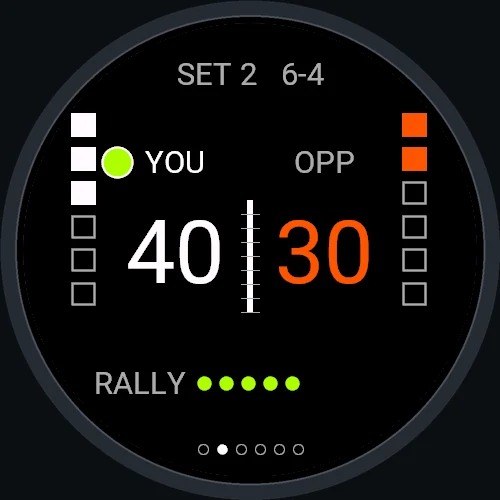
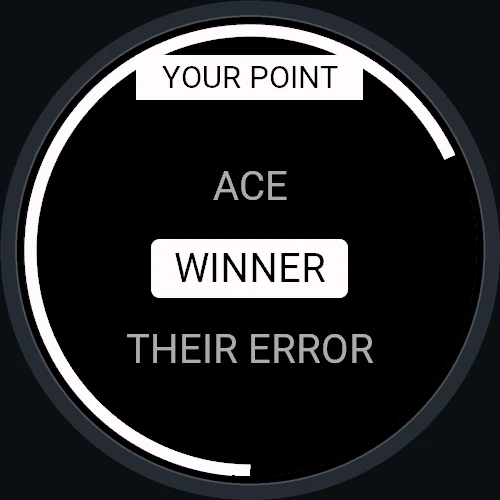
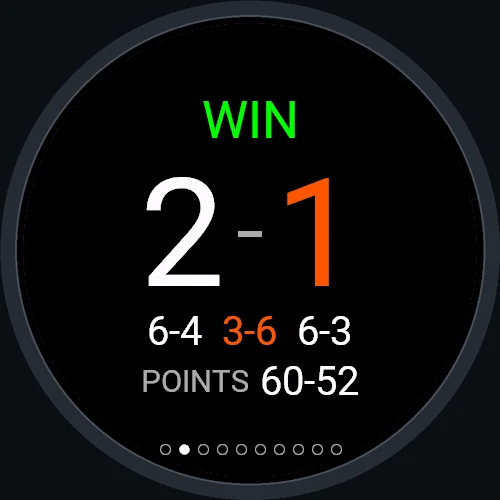
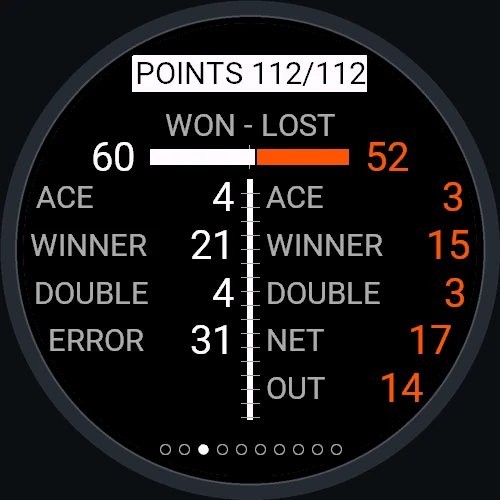
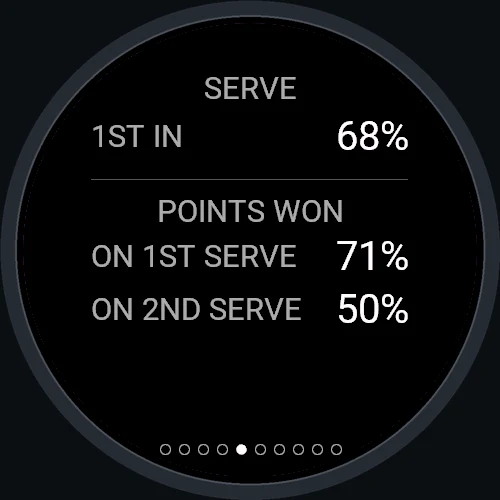
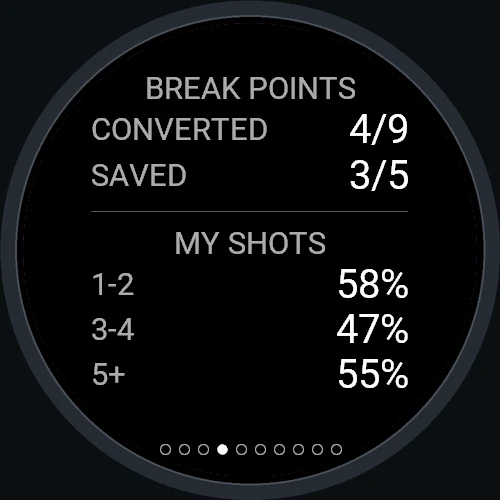
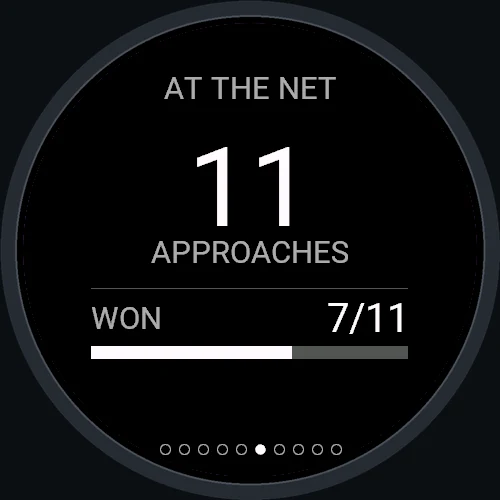
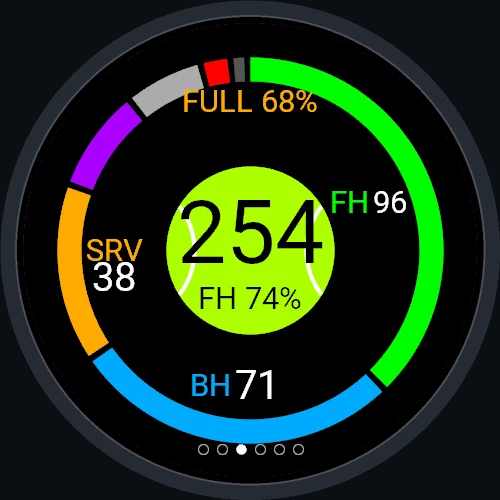
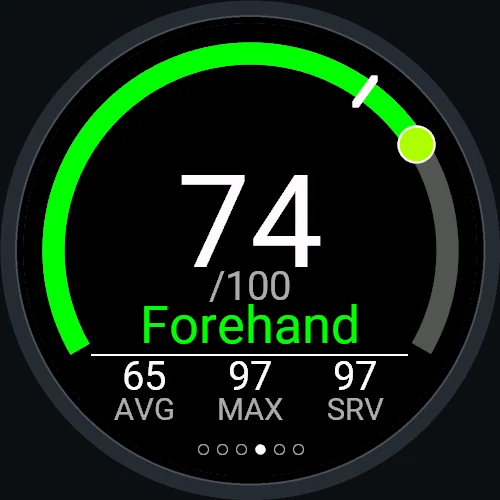
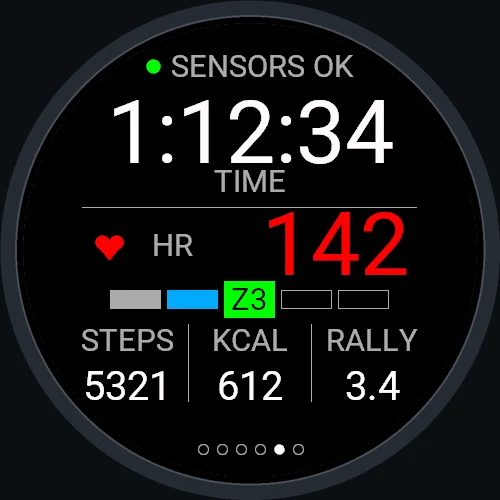
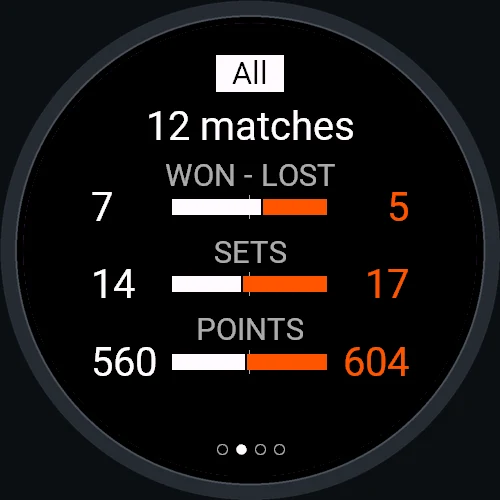
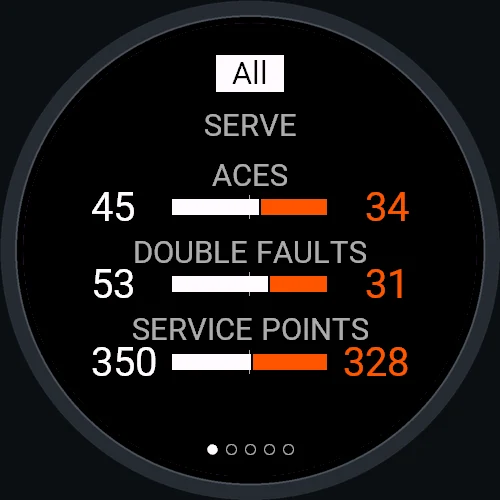
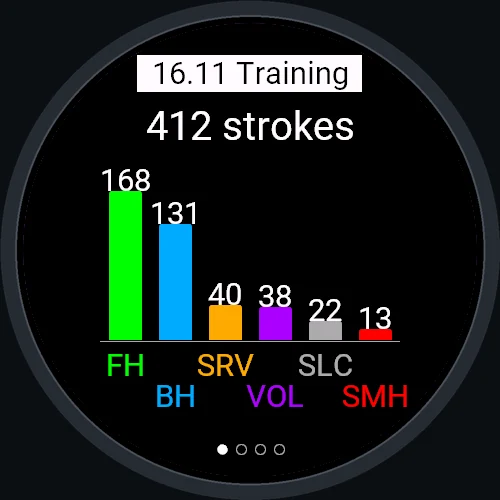
Scroll sideways for more screens.
How to use it
Everything during a match happens with the physical buttons, so it works with sweaty hands and in gloves.
Get Tennis Analyzer from the Connect IQ store. Right hand by default – left hand and the other wrist can be set in the app settings.
Open the app and hold UP for the menu. Start match asks for the format, the surface and who serves first. Start training (Pro) has no scoring. Nothing is recorded before you start.
UP when you win the point, DOWN when your opponent does, BACK to undo a mistake. With detailed point stats on (Pro), a short window lets you tag how the point ended.
START or a swipe turns the pages: Score, Shots, Power, Effort and Clock. After the last ball you also get Points, Serve, Break points and Net pages.
Menu → Save and exit. The activity goes to Garmin Connect with shot types, match statistics, a lap per game and charts.
Garmin Connect app → your watch → Connect IQ apps → Tennis Analyzer → Settings: hands, sensitivity, vibration, match defaults, detailed point stats and court movement (GPS).
Playing works without a phone. The phone is only needed to sync the activity and, in the trial, to check the licence.
In training (Pro) every shot counts as a serve – press UP after a serve that landed in and the watch shows your serve percentage.
Free vs Pro
After installing you get the full Pro version for 15 days. Then the app keeps working as the free version, or you unlock Pro once – no subscription, no account.
A reliable scorekeeper
The full analyzer, for good
The next step for Pro players
| Feature | Free | Pro |
|---|---|---|
| Match score: best of 3/5, one set, pro set, Fast4, tiebreaks, no-adBreak point, set point, match point, change ends | ||
| Activity recording: time, heart rate, calories, steps | ||
| Shot counter | total | by type |
| Shot recognition: forehand, backhand, serve, slice, volley, smash | ||
| Power index 0–100 and full swings | ||
| Point types: ace, winner, error, net, out, double fault | ||
| After the match: Points, Serve, Break points, Net pages | ||
| Training and serve drill | ||
| Statistics on the watch: matches, points, trainings, surfacesHistory is kept in the free version too, so it is there when you unlock Pro | ||
| Garmin Connect summary | sets, points, shots | full + 4 charts |
How to buy: on the watch open Menu → Tennis Analyzer Pro. It shows a short code – enter it on your phone at kzl.io/code and pay with PayPal or a card. Pro unlocks on the watch shortly, no restart needed. Payments and VAT are handled by our partner KiezelPay. Using the app since before version 2.6.0? If you had sessions saved on your watch, Pro stays free for you, for good.
Coming next
Your watch already writes a point-by-point log of every match into the activity file. Soon you will sign in here and turn it into an interactive report.
Compatible watches
Watches with a gyroscope and enough memory for shot recognition. Developed and tested on court with a fēnix 6X Pro.
FAQ
Forehand, backhand and serve are recognised most reliably. Slice, volley and smash are harder to tell apart with a single wrist sensor. Serve and smash are told apart by the point: the first overhead shot of your service point is a serve, and the watch learns the shape of your serve over time.
Left-handed play and wearing the watch on the other wrist can be set in the settings. They work the same way in principle, but so far the app has been tested on court by a right-handed player with a one-handed backhand – feedback is very welcome.
No. The phone is needed only to sync the activity to Garmin Connect and, during the trial or the purchase, for the watch to check its licence.
No. Pro is a one-time payment of 9.99 USD plus VAT and is tied to your watch. The web match reports planned for the future will be a separate, optional service.
No. If your watch had sessions saved in the app when you updated to 2.6.0, Pro stays unlocked for you, for good, and the watch never contacts the payment server.
Only for the trial and the Pro unlock. Through your phone the watch sends the app identifier, an anonymous device identifier and the watch model to KiezelPay – never your tennis data, location or health data. Details in the privacy policy.
Ball speed from a wrist sensor needs calibration with a radar. Until then the watch shows the 0–100 power index, which puts shots in the right order. The raw estimate stays in the activity file.
Write to contact@tennis-analyzer.com. If you can, add the date of the session – the activity file helps a lot.